Troubleshooting guide
Synology Hyper Backup Restore Version Conflict: When the Live Share Has Newer Files
Category: Backup & Restore
You are restoring a version from your offsite Hyper Backup vault, but the restore stops because the live share contains newer files than the version you selected.
Confirm the conflict
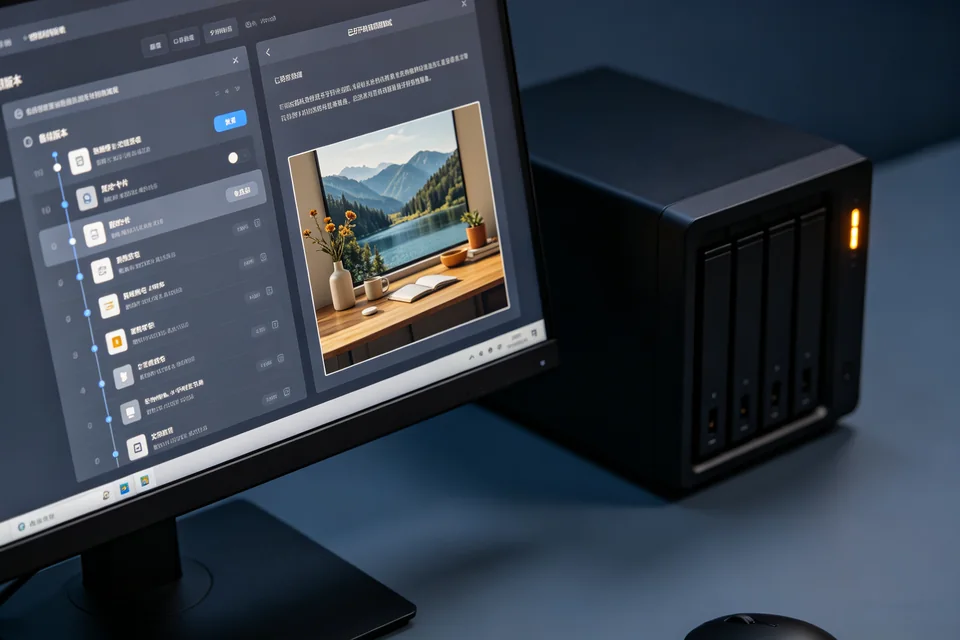
Open Hyper Backup, select your offsite vault, and choose Restore. In the version list, note the timestamp of the version you want. Then open File Station, navigate to the target live share, and check the modified dates of the files you expect to restore. If any live file is newer than the backup version timestamp, the conflict is real. Do not proceed until you decide which side should win.
Decide the restore outcome
You have two safe paths. If the live newer files are unwanted, rename the live share first (for example, share_old) so the restore creates a clean share. If the live newer files must be kept, restore the backup version to a different share name, then compare and merge manually. This avoids overwriting newer data. For a controlled diagnosis of the synology hyper backup restore version behavior, restore to a test share first and inspect the result before touching production data.
Verification test
After restoring to the test share, open a few files and compare their timestamps and contents against both the backup version and the live share. Confirm the restored files match the backup version exactly. If they do, you can apply the same method to the production share.
Rollback note
Before any overwrite, rename the live share rather than deleting it. If the restore produces unexpected results, rename the restored share aside and rename the original back. Keep the offsite vault untouched until you confirm the outcome. If the conflict persists or the version list looks inconsistent,
Ask for help before making further changes.